
Wisp Science使用技巧:快捷动作
查看原文阅读一段分析结论时,想查一查有没有文献支持;整理研究笔记时,想围绕某个观点做一次讨论。通常要先复制文字,再切到输入框,补上“请针对这段内容……”和一长串要求。
Wisp Science 的 快捷动作 把这种重复操作放到了选中文本旁边:先选中需要处理的内容,再点击相应动作,让这段材料进入后续任务。
上一篇介绍了 专家,这一篇介绍快捷动作的入口、内置“文献调研”的用法,以及怎样把已有工作流变成自己的选中文本动作。
先分清楚:快捷动作是入口,具体工作由技能或工作流完成。
| 组成部分 | 负责什么 |
|---|---|
| 选中的文本 | 这次要研究、讨论或处理的材料 |
| 快捷动作 | 在文本旁提供一个可重复使用的操作入口 |
| Skill | 为当前对话提供任务方法,例如文献检索与证据核验 |
| 工作流 | 定义多个任务及其依赖、能力和交付要求 |
| 专家 | 为任务提供固定角色与工作指令 |
当前内置的 文献调研 会准备当前会话的下一条消息,并附上 literature-review 技能。自定义快捷动作则绑定一个工作流,点击后为它创建专门的会话,并按工作流策略运行或等待审阅。
第一次使用,从“文献调研”开始。
假设对话里出现了这样一句需要进一步核验的判断:
这种细胞类型可能参与植物根系的干旱响应。
这只是一个待核验的示例观点。可以按下面的步骤处理:
- 在对话正文中选中这段文字。
- 在浮动的选中文本工具栏中点击 文献调研;也可以选中后打开右键菜单,选择同名动作。
- 查看当前输入框:选中文字已经作为引用加入,同时附上
literature-review技能和可编辑的调研提示词。 - 补充研究范围和希望得到的结果,再点击 发送。
例如,在准备好的请求后补充:
研究对象限定为拟南芥根系。请区分直接支持这一观点的实验研究、仅有相关性的观察,以及相反或不支持的证据。优先使用原始研究,核验标题、年份和 DOI,并说明哪些结果还不能支持因果推断。
点击“文献调研”后,还需要发送消息才开始任务。 这给你留下了补充物种、时间范围、检索重点和输出形式的机会。发送之后,工具调用、进度和最终回复都保存在当前对话中,之后可以结合 轨迹 查看实际检索过程。
文献检索需要可用的模型、检索工具和网络。技能负责指导检索与核验方法;是否真正取得论文记录,要看工具返回的结果。初次尝试时,可以用自己已经熟悉的一个观点,核对返回文献是否确实支持相应结论。
在文件预览里,也可以围绕一段文字发起任务。
除了对话正文,非代码文件预览中的可选文本也支持快捷动作。例如,在一份研究笔记里选中“值得进一步验证”的段落,再调用文献调研,便于带着明确问题回查证据。
对于 R 和 Python 源码,选中后的菜单会保留运行、询问 AI、引用、解释等代码操作。找不到“文献调研”时,先确认自己选中的是正文还是代码。图片中的文字如果无法直接选中,需要先提供可选取的文字内容。
如果不希望每次选中文本都弹出浮动工具栏,可以在 设置 → 常规 中调整 划选即弹出快捷操作。关闭浮动入口后,仍可通过右键菜单使用相关操作。
进入“设置 → 快捷动作”,管理哪些动作出现在菜单里。
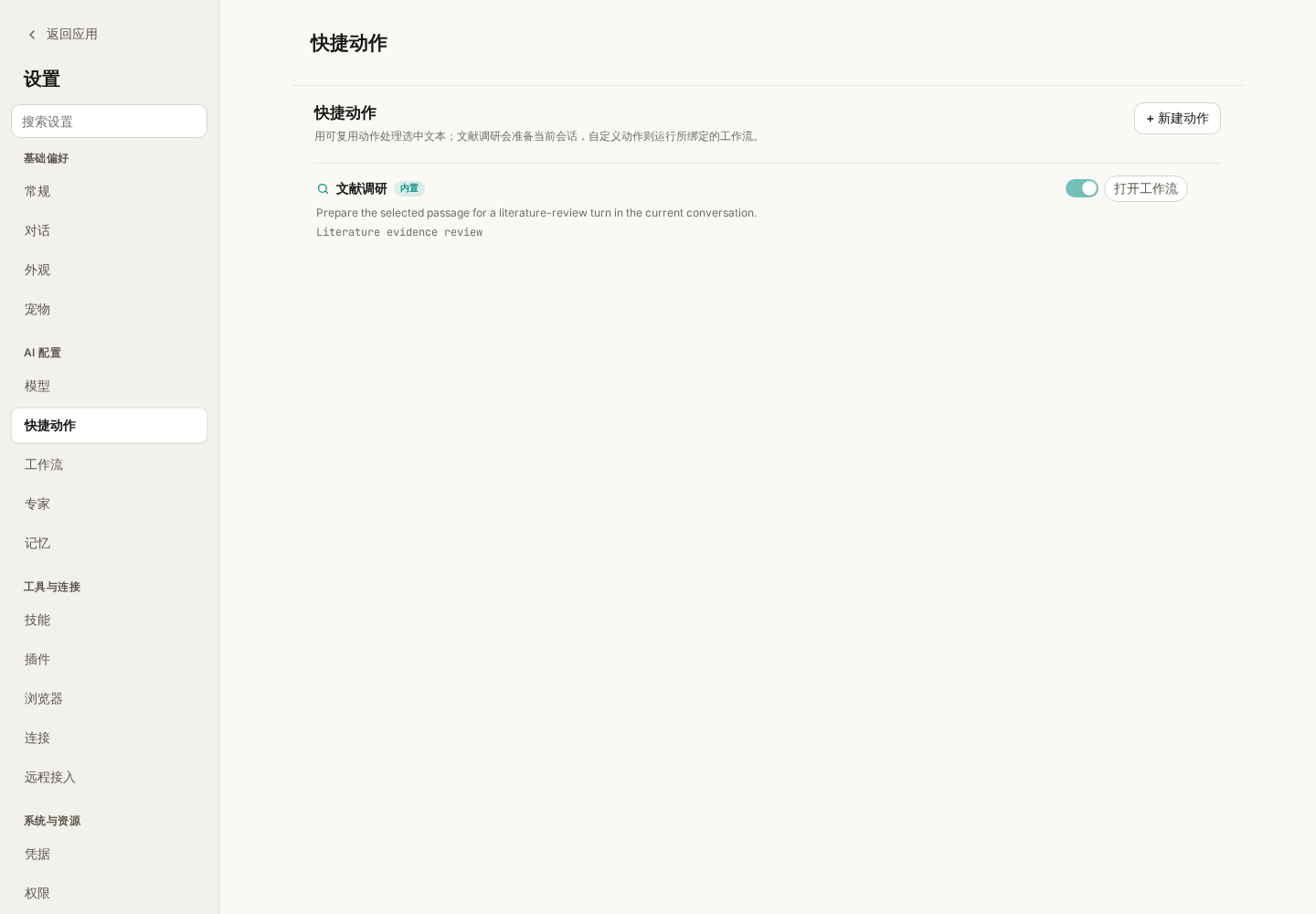
图 1:实际前端配合模拟数据展示的快捷动作设置页。配图用于说明配置入口,没有执行文献检索或调用模型。
在这里可以查看动作名称、描述和关联工作流,通过 选中文本时显示 控制是否启用,也可以编辑已有动作。自定义动作还可以删除。
动作旁的 打开工作流 会进入独立的工作流编辑器,查看任务图和相关配置。这里有一个容易混淆的地方:内置“文献调研”虽然可以打开关联的 Literature evidence review 模板,但选中文字后点击这个内置动作,仍然是向当前输入框准备一次调研请求。
如果希望明确执行多节点的文献证据审阅图,可以使用工作流模板本身。查看模板与点击内置快捷动作,是两个不同的入口。
创建自定义动作,可以先绑定一个已有工作流。
例如,希望经常围绕笔记中的一个观点开展多角度讨论,可以创建 讨论这段观点,绑定工作流库中的 Roundtable:
- 进入 设置 → 快捷动作,点击 新建动作。
- 在 动作名称 中填写“讨论这段观点”。
- 在 工作流 下拉框中选择
Roundtable。 - 在 描述 中说明用途,例如“围绕选中观点比较解释,汇总分歧与待验证问题”。
- 保持 选中文本时显示 开启,点击 保存。
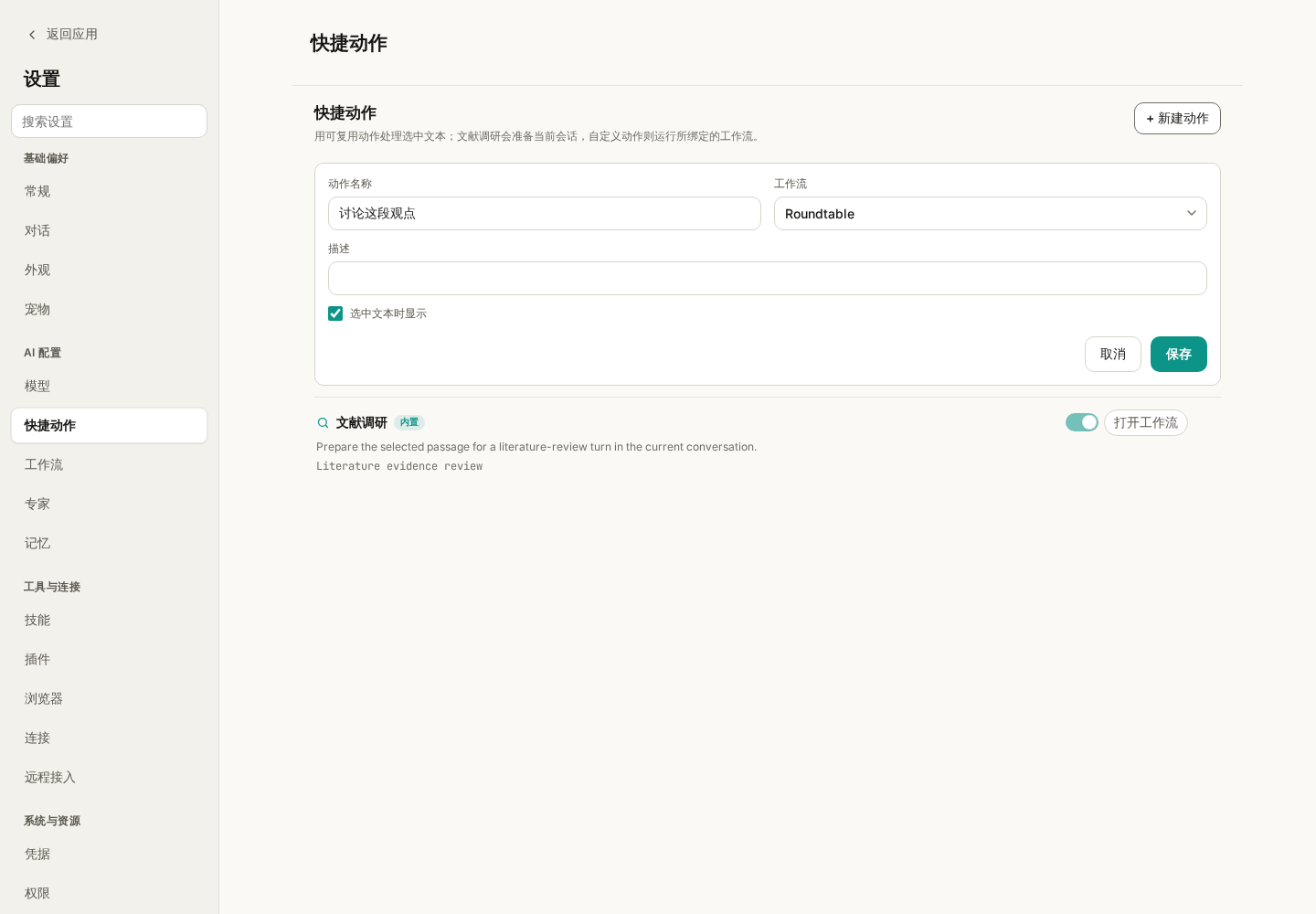
图 2:把“讨论这段观点”绑定到已有的 Roundtable 工作流。动作名称用于选中文本菜单,真正的任务分工由所选工作流决定。
保存后,回到对话或非代码文件预览,选中一段完整观点,再从浮动工具栏或右键菜单选择 讨论这段观点。Wisp 会将选中文字与来源信息(可用时)带入工作流上下文,并为这次任务创建专门的会话。
自定义动作不会像内置“文献调研”那样,先停在当前输入框等待你发送。根据所选工作流的审批策略和实际能力要求,它可能直接开始,也可能生成待审阅的草稿。看到“已创建草稿,请审阅后运行”时,先检查任务内容,再批准运行;看到已启动提示时,就到新会话和 Agents 活动面板查看进度。
动作的描述用于说明入口,任务要求应写进绑定的工作流。
例如,将动作描述改成“检查统计方法”,并不会把 Roundtable 的任务图自动改成统计审查流程。希望它每次检查样本量、检验方法和多重比较,就应该打开工作流,在目标和任务指令中写清这些要求,再让动作绑定到这个模板。
工作流编辑器中可以配置目标、共享上下文、任务节点、依赖关系、技能与能力,以及专家、执行器和模型等。独立任务可以并行,有依赖的任务按前后顺序执行。
内置工作流以只读模板提供;保存修改后的版本会创建自定义副本。首次使用可以先查看已有模板的节点和目标,再复制调整一处明确需求,无需一开始就设计复杂的多任务图。
例如,一个“检查研究论证”的小工作流可以分为三个任务:
| 任务 | 要求 |
|---|---|
| 梳理论点 | 列出选中段落中的主要判断,区分事实陈述和推测 |
| 检查证据 | 根据提供的材料判断证据支持程度,列出缺失条件 |
| 汇总修改建议 | 读取前两个任务的结果,给出保留、弱化表述或补充验证的建议 |
这是一个供你配置的流程示例,并非额外内置模板。先明确任务输入和输出,再按实际需要选择技能或专家,最后保存并绑定快捷动作。
让选中的文字自带足够的上下文。
如果只选中“这个结果很重要”,后续任务很难知道“这个结果”指什么。更合适的选择是包含研究对象、现象和判断的一小段完整文字;需要文献检索时,再补充物种、方法或关注范围。
对于内置文献调研,可以发送前在输入框补充这些信息。对于自定义动作,应该在触发前选好完整材料,或事先把固定背景与要求写入工作流。不要假定任意动作都会自动读取整篇文件、整个项目或全部历史对话。
| 现象 | 优先检查 |
|---|---|
| 选中文字后没有浮动工具栏 | 是否关闭了“划选即弹出快捷操作”;试试右键菜单 |
| 菜单中没有某个动作 | 是否在设置中开启“选中文本时显示”;是否正在选择 R/Python 代码 |
| 点击文献调研后没有开始搜索 | 查看输入框是否已准备好引用、技能和提示词,再发送 |
| 自定义动作没有在当前对话回复 | 查看是否打开了专门会话,或是否生成了待审阅草稿 |
| 新建动作按钮不可用 | 工作流列表是否已加载且至少有一个可选模板 |
| 修改动作描述后,结果仍按旧流程生成 | 检查绑定工作流的目标和任务指令,描述不会改写任务图 |
| 提示工作流、能力或执行器不可用 | 打开绑定工作流,检查模板和所需配置是否仍存在且可用 |
先从内置文献调研开始,熟悉“选中文字 → 准备请求 → 补充范围 → 发送”的操作。等某种处理方式需要反复使用,再把它整理成工作流,绑定为自己的快捷动作。
本文依据撰写时的 Wisp Science 实现与项目文档整理。配图采用实际前端与模拟数据,示例观点、任务和提示词仅用于说明操作,不代表已验证的科研结论。
While reading an analysis, you may want to find literature supporting a claim. While organizing notes, you may want to discuss one paragraph from several perspectives. Copying text and rewriting the same instructions each time adds friction.
Wisp Science Quick Actions put reusable actions beside selected text. Select the material, choose an action, and carry it into the next task.
Following Specialists, this tutorial covers selection entry points, the built-in Research literature action, and binding an existing Workflow to your own action.
The Quick Action is the entry point; Skills or Workflows define the work.
| Component | Responsibility |
|---|---|
| Selected text | The material to research, discuss, or process |
| Quick Action | A reusable operation available beside that material |
| Skill | Task methods for a conversation, such as literature search and verification |
| Workflow | Tasks, dependencies, capabilities, and deliverable requirements |
| Specialist | A standing role and instructions for a task |
The built-in Research literature action prepares the next message in the current conversation with the literature-review Skill. Custom actions bind a Workflow and create a dedicated conversation, where execution starts or waits for review according to the Workflow policy.
Start with Research literature.
Suppose a conversation contains this claim requiring verification:
This cell type may participate in the drought response of plant roots.
This is an example claim, not an established finding. To investigate it:
- Select the passage in the conversation body.
- Choose Research literature from the floating selection toolbar or the right-click menu.
- Inspect the current composer: it contains the selected passage as a quote, the
literature-reviewSkill, and an editable research prompt. - Add scope and output requirements, then click Send.
For example, add:
Limit the question to Arabidopsis roots. Separate direct experimental support, correlational observations, and conflicting or unsupportive evidence. Prefer original research, verify titles, years, and DOIs, and explain where the evidence cannot establish causality.
Choosing Research literature does not start the task until you send the message. Use that opportunity to specify species, dates, search priorities, and the desired output. After sending, tool activity, progress, and the final reply stay in the current conversation. Trajectory lets you inspect the actual search process later.
Literature retrieval requires a working model, available search tools, and network access. The Skill guides the method; tool results show what was actually retrieved. Try a familiar claim first and check whether cited papers support the associated statements.
Use selected text in file previews too.
Quick Actions also work with selectable text in non-code file previews. Select a paragraph in research notes and start a literature review around that specific question.
R and Python source selections retain code operations such as Run, Ask AI, quote, and explain. If Research literature is absent, check whether you selected prose or code. Text inside an image must first be supplied in a selectable form.
To stop the floating toolbar appearing on every selection, adjust Settings → General → Selection quick actions. The corresponding operations remain available through the right-click menu.
Manage menu entries in Settings → Quick Actions.
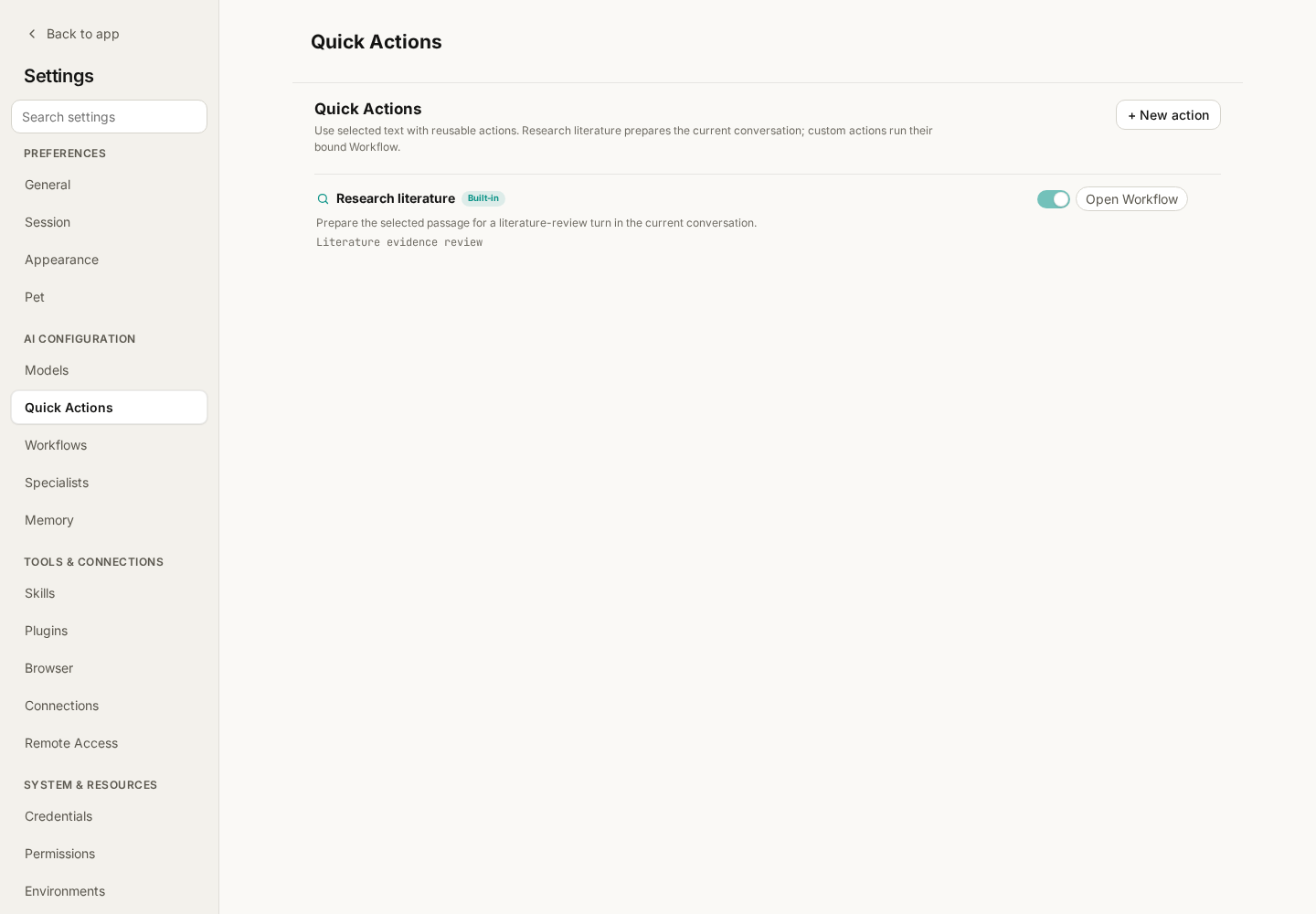
Figure 1: The actual frontend with mocked data. This screenshot demonstrates configuration without running a literature search or calling a model.
The page shows action names, descriptions, and associated Workflows. Show for selected text controls availability. Existing actions can be edited; custom ones can also be deleted.
Open Workflow enters the standalone Workflow Studio to inspect the task graph and configuration. One detail matters: although Research literature links to the Literature evidence review template, invoking that built-in selection action still prepares a research request in the current composer.
Use the Workflow template itself when you explicitly want the multi-node evidence review graph. Inspecting its template and invoking the built-in Quick Action are separate entry points.
Create a custom action by binding an existing Workflow.
For a recurring discussion of claims in your notes, create Discuss this claim and bind the library’s Roundtable Workflow:
- Open Settings → Quick Actions → New action.
- Enter “Discuss this claim” as the Action name.
- Select
Roundtablein Workflow. - Add a description, such as “Compare interpretations of the selected claim and summarize disagreements and questions to test.”
- Keep Show for selected text enabled and click Save.
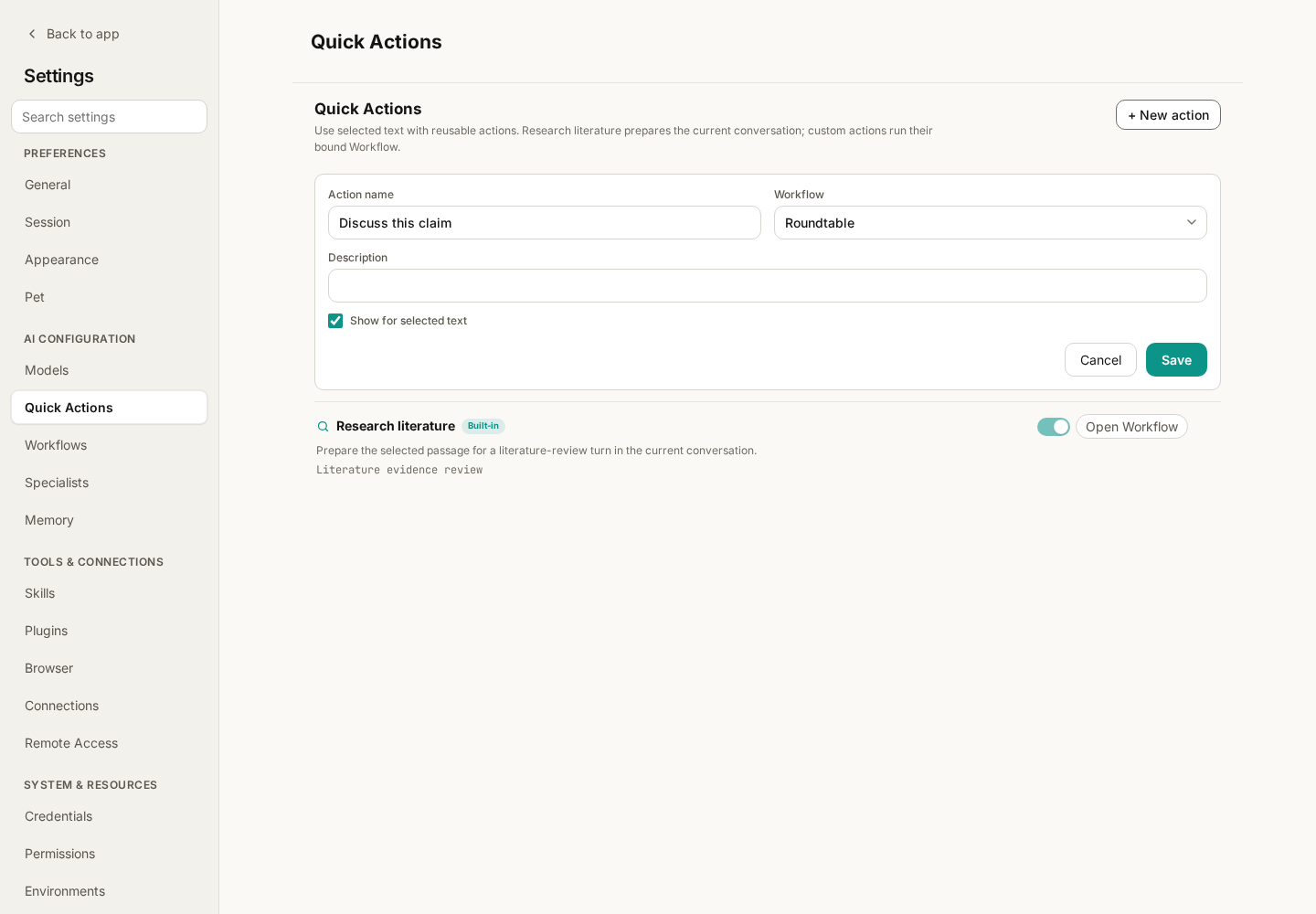
Figure 2: Binding a selection action to an existing Workflow. The action name labels the menu entry; the Workflow defines the task assignments.
Return to a conversation or non-code file preview, select a complete claim, and choose Discuss this claim from the floating toolbar or context menu. Wisp adds the selection and available source information to the Workflow context and creates a dedicated conversation.
A custom action does not pause in the current composer waiting for Send as Research literature does. Depending on the Workflow’s approval policy and resolved capability requirements, it starts or becomes a draft awaiting review. If a draft is created, inspect the tasks before approving execution. If it starts, follow the new conversation and the Agents activity panel.
The action description explains the entry point; write task requirements into the Workflow.
Changing an action’s description to “Check statistical methods” does not transform Roundtable into a statistical review graph. To check sample sizes, tests, and multiple comparisons every time, write those requirements into the Workflow goal and task instructions, then bind the action to that template.
Workflow Studio exposes the goal, shared context, task nodes, dependencies, Skills and capabilities, and Specialist, executor, and model choices. Independent tasks may run in parallel; dependencies establish ordering.
Built-in Workflows are read-only templates. Saving edits to one creates a custom copy. Start by inspecting an existing template and adjusting one concrete requirement rather than designing a large graph immediately.
A small “Check research reasoning” Workflow could have three tasks:
| Task | Requirement |
|---|---|
| Identify claims | List the passage’s main judgments and separate factual statements from speculation |
| Check evidence | Assess support from the supplied materials and identify missing conditions |
| Synthesize revisions | Read both preceding results and recommend retaining, qualifying, or testing claims |
This is a configuration example, not another built-in template. Define inputs and outputs first, choose Skills or Specialists as needed, then save the Workflow and bind a Quick Action.
Select enough context for the task to make sense.
“This result is important” gives a downstream task little to work with. Select a short, complete passage identifying the subject, observation, and interpretation. For literature research, add the species, method, or relevant scope.
For Research literature, add this context in the composer before sending. For custom actions, select complete material before triggering the action or store recurring background in the Workflow. Do not assume an arbitrary action automatically reads the entire file, project, or conversation history.
| Symptom | First check |
|---|---|
| No floating selection toolbar | Check Selection quick actions in General; try the context menu |
| An action is missing | Check Show for selected text and whether you selected R/Python code |
| Research literature has not started | Inspect the prepared quote, Skill, and prompt, then send |
| A custom action did not reply in the original conversation | Look for its dedicated conversation or a draft awaiting review |
| New action is unavailable | Ensure the Workflow list has loaded with at least one template |
| Editing the description did not change the results | Edit the bound Workflow’s goal and task instructions |
| A Workflow, capability, or executor is unavailable | Inspect the bound template and its required configuration |
Start with selecting text, preparing a literature request, refining its scope, and sending. When a procedure becomes repetitive, turn it into a Workflow and bind your own Quick Action.
This tutorial reflects the Wisp Science implementation and project documentation at writing time. Screenshots use the actual frontend with mocked data. Example claims, tasks, and prompts illustrate operation and do not represent verified research conclusions.